A simple setup for
clearer tracing
Every desk is different. Use these four high-level steps to get a stable camera view, clean lighting, and an overlay that is easy to follow.
Point your camera straight down
Start with the simplest goal: keep the lens centered over your paper and as level as you can.
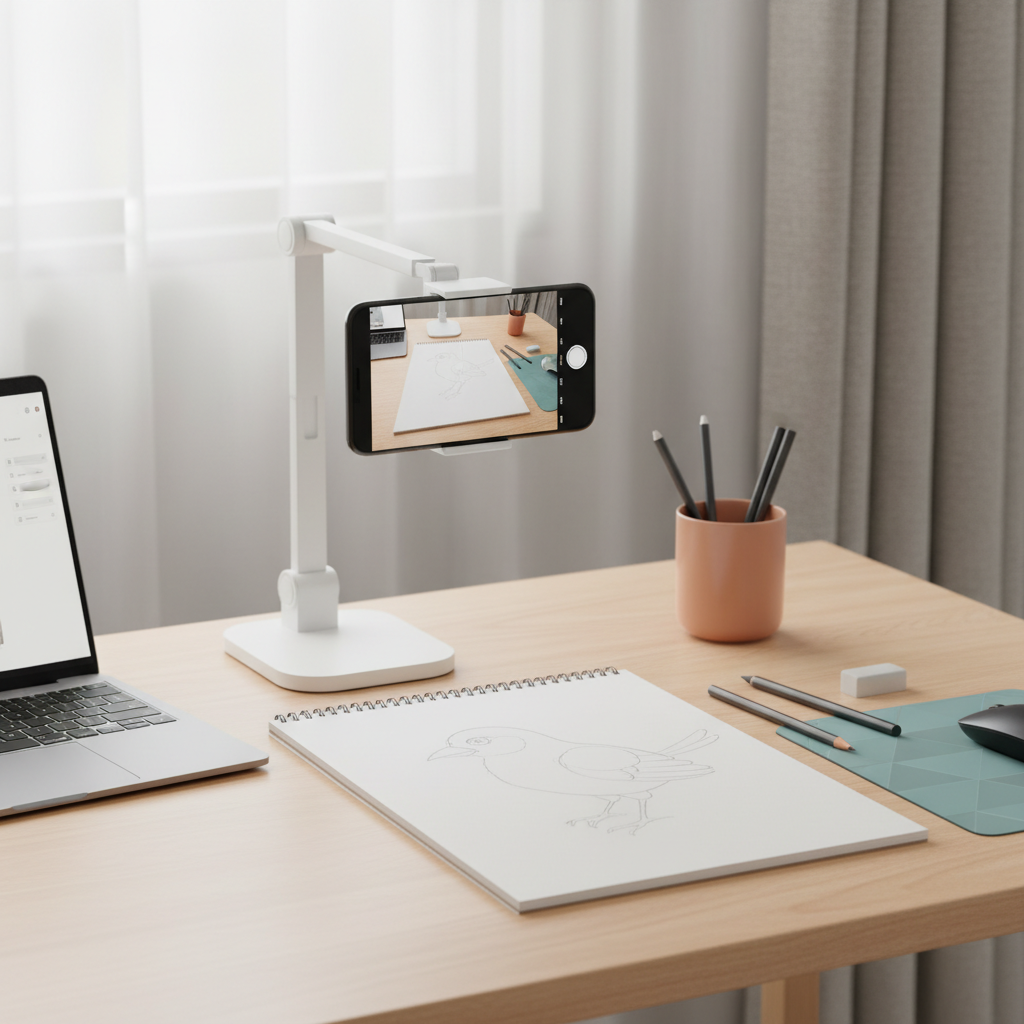
- 1Use a document camera, webcam arm, phone mount, or any stable stand that can hold the lens above your paper.
- 2Place the camera roughly over the center of the page, then adjust until the paper looks rectangular in the preview.
- 3Raise the camera if you need to see more of the desk; lower it if you need more detail.
- 4Once it looks good, tighten the stand or clamp so the camera does not move while you draw.
Tip:Your setup does not need to be perfect. A stable, mostly straight-down view is usually enough to get started.
Light the paper evenly
Good lighting makes the camera feed easier to see and keeps your hand shadow from getting in the way.
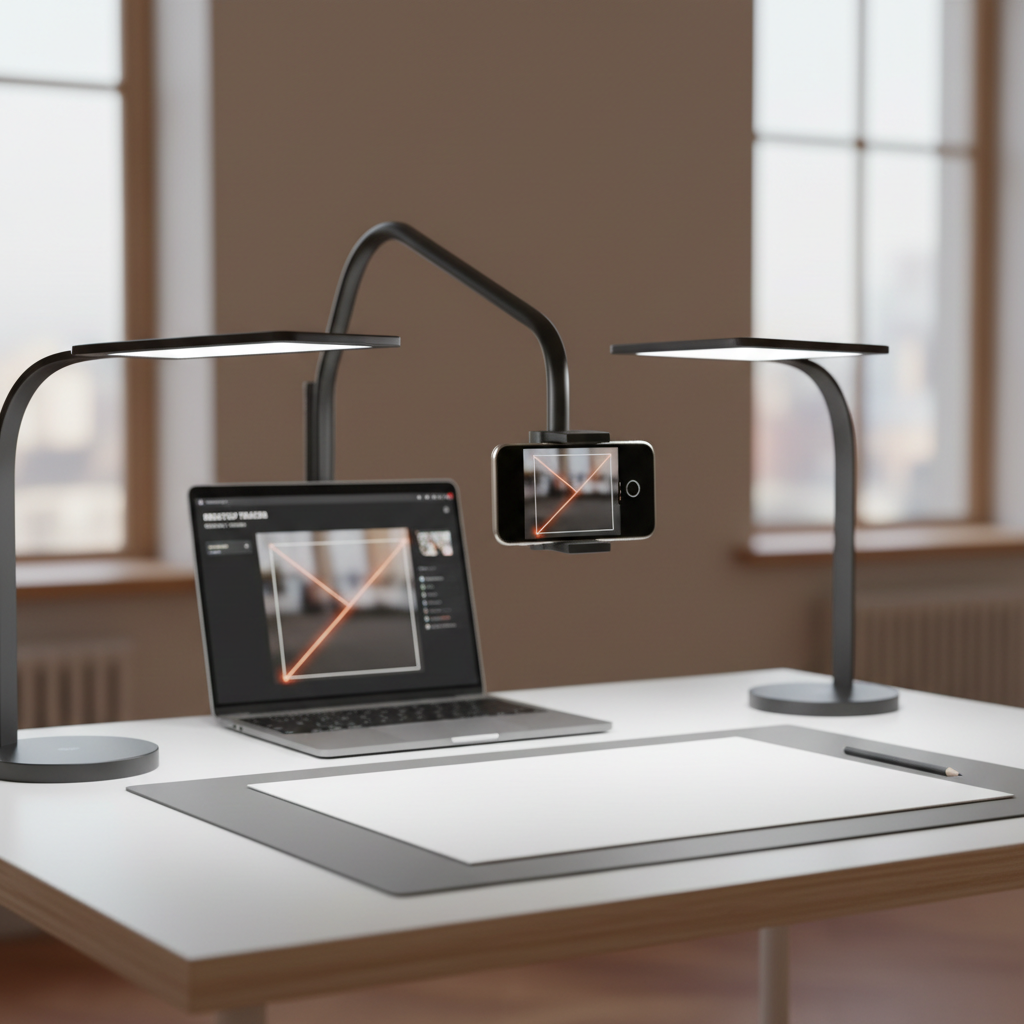
- 1Use a ring light, LED panel, bright desk lamp, or two lamps placed on opposite sides of the paper.
- 2Move your drawing hand through the camera view. If it casts a strong shadow, adjust the light angle.
- 3Avoid lighting from only one side when possible — it usually creates the most distracting shadows.
- 4If your paper looks yellow, try a daylight or cool-white bulb, or adjust camera white balance in the app.
Tip:Even light matters more than expensive light. Start with what you already have, then adjust after checking the live preview.
Choose the camera in Desktop Tracer
Let the browser use your camera, then select the view that shows your paper.
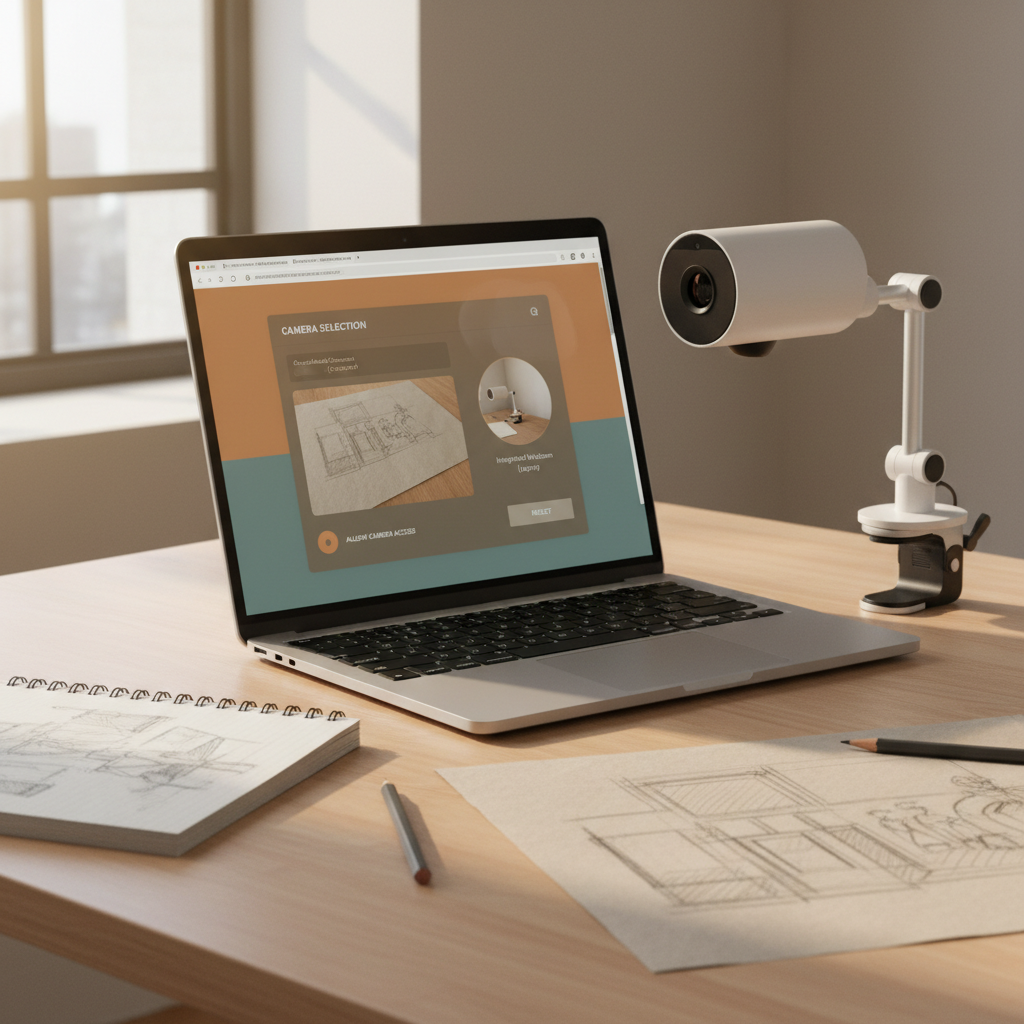
- 1Connect your camera before opening the tracing workspace. If you connect it later, refresh the page.
- 2When your browser asks for permission, choose Allow so Desktop Tracer can show the live feed.
- 3Open the camera selector and pick the camera that shows your paper or desk surface.
- 4If the wrong camera appears first, choose another option from the list until you see the overhead view.
Watch out:If the camera is unavailable, close other apps or tabs that may be using it, then refresh Desktop Tracer.
Line up your reference image
Add your image, lower its opacity, and move it until it sits where you want to draw.
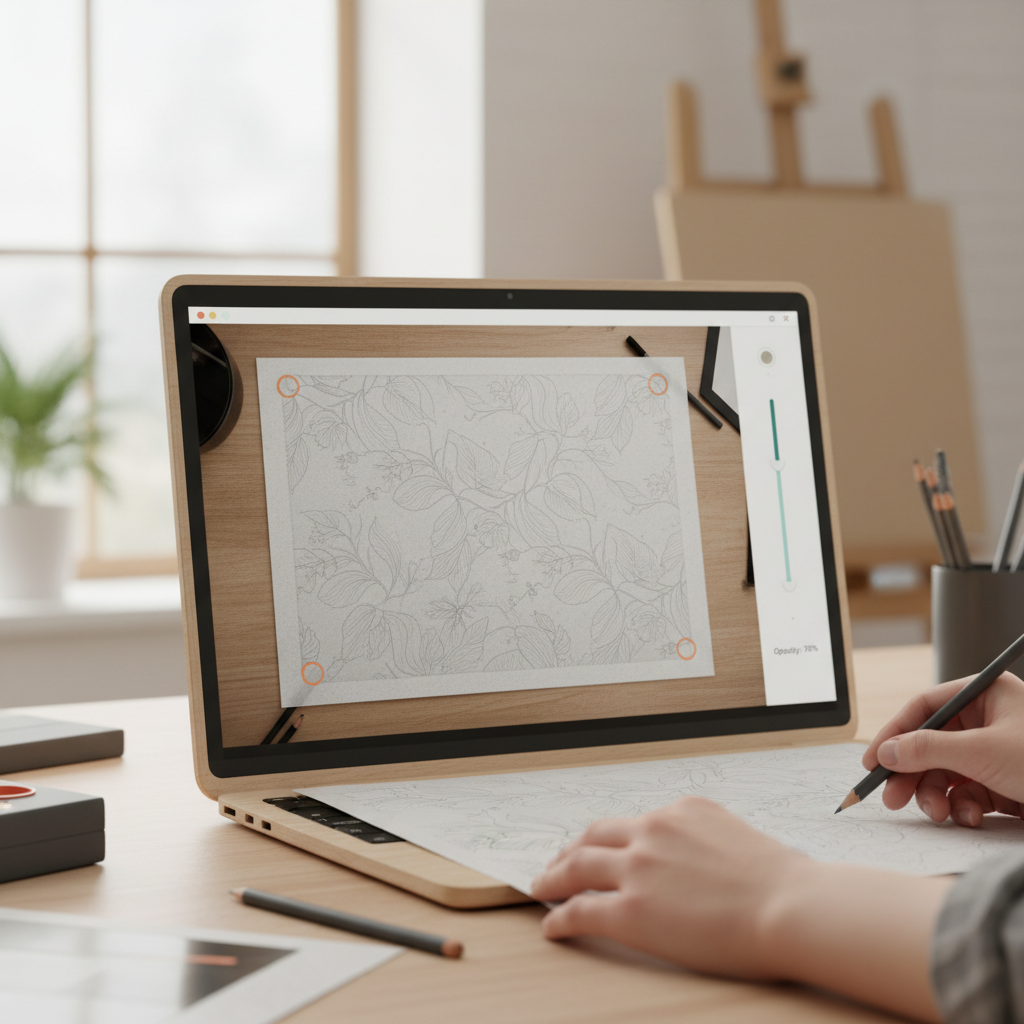
- 1Add the image you want to trace as a layer in your project.
- 2Lower the opacity so you can see both the reference and the paper underneath.
- 3Move, scale, or corner-align the image until it fits your drawing area.
- 4When it looks right, reduce the opacity to a comfortable tracing level and begin drawing.
Good to know:You can always adjust the overlay later. Start close, make a few test marks, then fine-tune if needed.
Common questions
Quick fixes for the most common setup issues. Most problems come down to camera position, lighting, or browser permissions.